Members and roles
What can owners, admins, editors and viewers do?
Elly owns the Westlands Trading workspace. Her depot managers should read the dashboards, her analyst should build them, and nobody but her should be able to change who does what. Vantage gives each person two roles: one for the workspace, and one in each project they belong to.
Workspace roles
| Role | Who | Can also |
|---|---|---|
| Owner | The person who created the workspace | Change other people's workspace role |
| Admin | Set by the owner | Act as admin in every project; add people to projects; share data sources with every project; open More → Health; change the AI switches under More → AI and the plan under More → Billing |
| Member | Everyone else | Only what their project roles allow |
The owner role belongs to the person who created the workspace and cannot be handed over in Vantage ("The owner role cannot be changed here").
Project roles
Each project member has one of three roles in it. Each role can do everything the one above it can.
| Role | Can |
|---|---|
| viewer | Open published dashboards, star and export them; run queries in the SQL Editor and open saved queries |
| editor | Build, publish, rename, duplicate, archive and delete dashboards; save queries; add and change the project's data sources and metric models; share a dashboard with someone outside the project; open Catalog and Import, try templates and install the project's own packs |
| admin | Rename, archive and delete the project; add, change and remove its members; install base packs |
Viewers see a project's drafts listed, but cannot open them. Workspace owners and admins count as admin in every project, whether or not they are listed in it.
See who has access
Open More → Users. Everyone in the workspace can see the list: each person, their Org role, and the projects they are in with their role in each.

The owner sees a list under Org role for everyone else, with admin and member; choose one to change it straight away.
Add someone to a project
You need to be a workspace owner or admin.
- In More → Users, select Manage access on the person's row.
- Choose the project under Add to project…, choose the role (it starts at editor), and select Add.
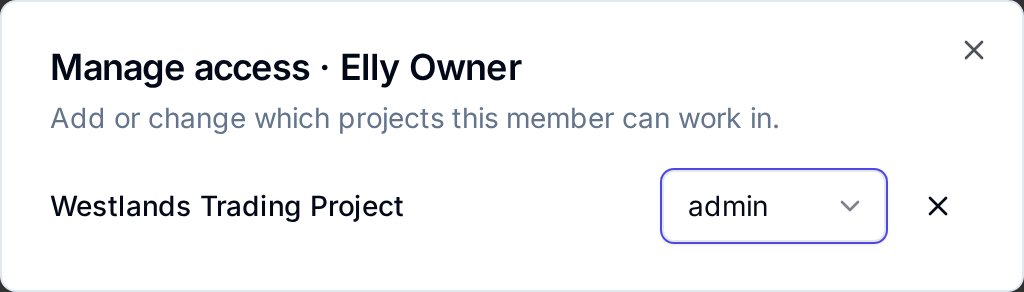
In the same dialog, change a project role with its list, or select × to take the person out of the project. A project must keep one admin; taking the last one out is refused with "Project must keep one admin". Add to project… only lists projects the person is not in yet.
Bring someone into the workspace
Vantage has no invite button. A person joins the workspace by signing in to Vantage with a login in the workspace's organisation, which whoever runs the workspace's sign-in creates for them. They appear in Users as a member after their first sign-in, in no project until someone adds them to one.
Each plan includes a number of members: 5 on the trial and Starter, 15 on Growth and 50 on Business, and extra members can be added on Billing. When the workspace is full, the new person's sign-in stops with "This workspace has no room for another member on its plan, or is read-only until a plan is chosen."
Next
- Projects to create the projects people work in
- Dashboard access to share one dashboard outside a project
- Health for what workspace admins can check