Write and save queries
How do I write, run and save a query?
Elly wants revenue and units by facility side by side, sorted with the best facility first, and she wants to keep the query to chart it later. She writes it in the SQL Editor.
The SQL Editor is part of the Growth plan and above; on the trial and Starter it is not in the top bar, and a query is refused with "The SQL editor is not part of your Trial plan. Growth lifts it." Anyone in the project can run queries; saving one needs the editor or admin role.
Write and run a query
- Open SQL Editor. It works on the project in the project switcher.
- On the left, the schema lists the project's Tables, Views and Materialized views. Select the arrow on a table to see its columns, or its name to insert it into the query.
- Write the query. The editor suggests table, column and SQL names as you type.
- Select Run query, or press Ctrl+Enter.
SELECT facility, ROUND(SUM(revenue), 2) AS revenue, SUM(qty) AS units
FROM raw_sales
GROUP BY facility
ORDER BY revenue DESC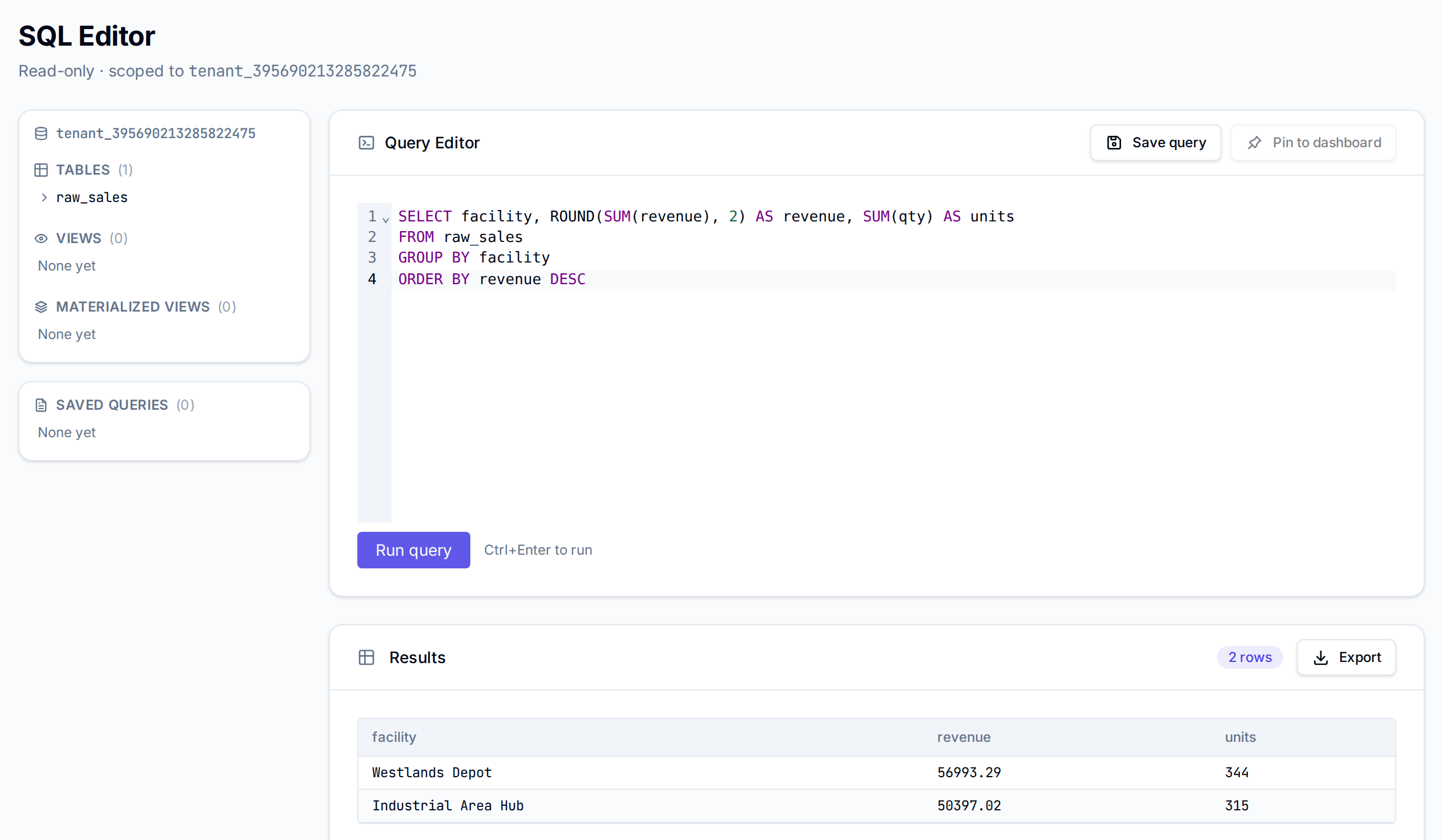
Results shows how many rows came back, 50 to a page, with Export for CSV or Excel.
The editor only reads. Each run must be one SELECT or WITH statement over the project's
tables and the workspace's shared ones:
| Message | Why |
|---|---|
| Only SELECT or WITH queries are permitted | The query tries to change data |
| Only a single statement is allowed | There is more than one statement |
| This query uses a table outside this project | A table belongs to another project |
| Query budget exceeded. Try again later. | The workspace ran its hourly allowance of queries |
Other errors from the warehouse show under Query Error. A query returns at most 5,000 rows and stops after 30 seconds; see SQL limits.
Save the query
- Select Save query.
- Enter a name, here Revenue by facility (SQL), and select Save.
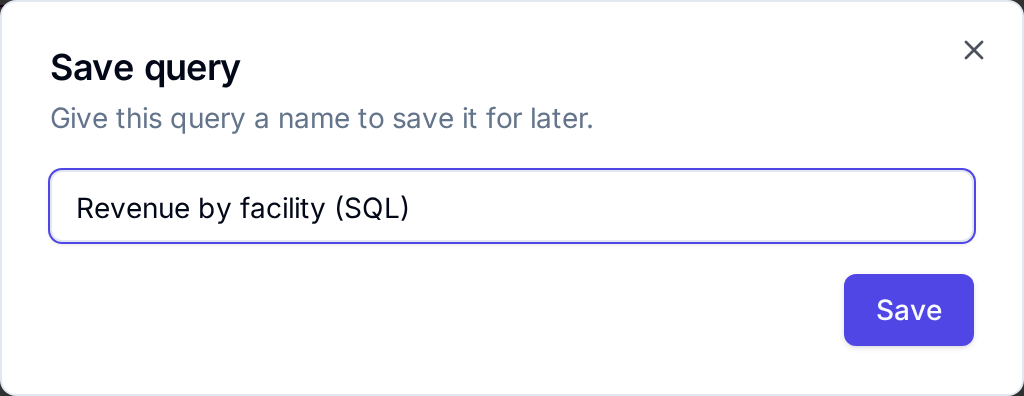
Vantage confirms with Query saved. The query appears under Saved queries on the left, for everyone in the project. Select its name to load it into the editor again.
Use a saved query
Hover over a saved query and select ⋯:
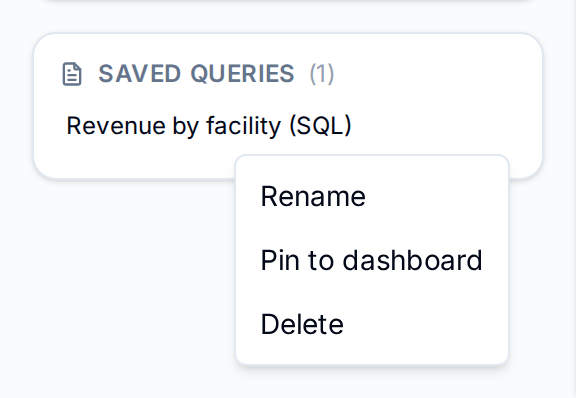
| Item | What it does |
|---|---|
| Rename | Change the name in Rename query |
| Pin to dashboard | Choose a dashboard in this project; Vantage adds a table of the query's results to its draft and confirms with Pinned to and the dashboard's name |
| Delete | Remove it after Delete query asks you to confirm; this cannot be undone |
Pin to dashboard above the editor does the same for the query you have open. To chart the query instead of showing a table, add a widget with From SQL in the dashboard builder and choose the query (see Build a draft). Publish the dashboard for viewers to see it.
Next
- SQL limits for row, time and query allowances
- Build a draft to chart a saved query
- Exports to download query results