Build a draft
How do I add charts and filters and arrange the layout?
Elly wants a dashboard comparing her two facilities: revenue month by month, revenue per facility, and a table of what sold. She builds it as a draft, where nobody else sees it until she publishes.
You need the editor or admin role in the project. To start a dashboard, open Projects, select the project and select New dashboard; Your first dashboard walks through it. To change an existing one, select Edit on its row or on the dashboard.
The builder
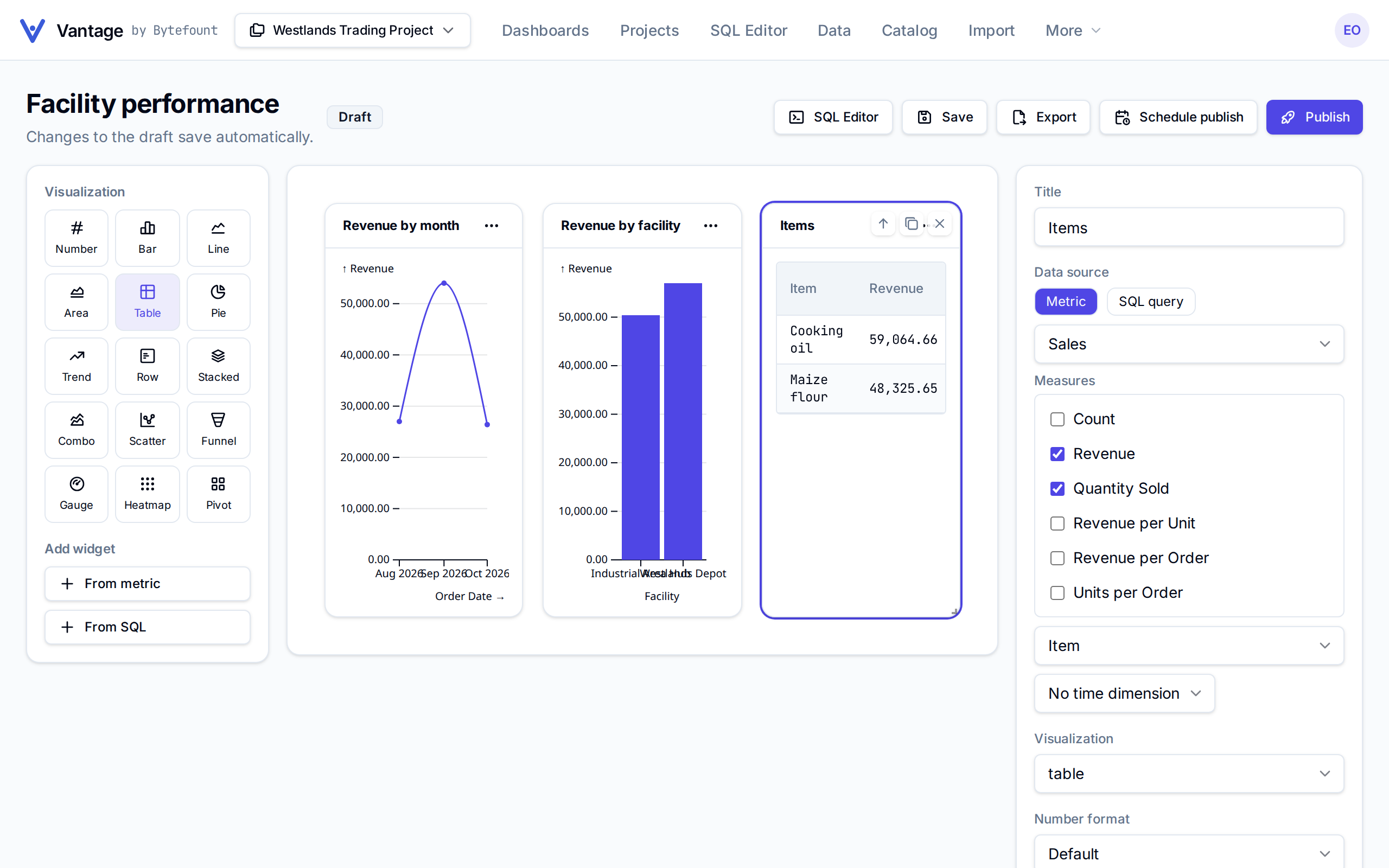
The palette on the left picks a Visualization and adds widgets. The middle is the dashboard, on a grid twelve columns wide. The panel on the right sets up the selected widget. Changes save on their own a moment after you make them; Saving… shows while they do, and Save saves straight away.
Add a widget
- Under Visualization, choose a type, here Line.
- Under Add widget, select From metric to chart a metric model, or From SQL to chart a saved query.
- In the right panel, enter a Title, here Revenue by month.
- Under Data source, choose the dataset Sales and tick the measures, here Revenue.
- Choose how to group the numbers: a dimension such as Facility, a time dimension such as Order Date with a grain from day to year, or both.
- Set X axis to the field along the bottom, here Order Date, and tick the Y values to plot. Series (optional) splits the chart into one line or bar per value.
Until a widget has what it needs, it says what is missing: "Pick a dataset and a measure." or "Pick the fields to plot."
| Type | Needs |
|---|---|
| number, table | Only a data source |
| trend, gauge | A data source and a Y value; gauge also takes Target, Min and Max |
| bar, line, area, pie, row, stacked, combo, scatter, funnel, heatmap, pivot | A data source, an X axis and a Y value |
combo also asks which Y values to draw as Line fields. pie draws each slice as a bar, sorted by size. Number format shows the figures as number, currency or percent; On charts and tables, Default uses the format set in the metric model.
From SQL charts a query saved in the SQL Editor: choose it under SQL query, and its columns become the fields (see Write and save queries).
Arrange the layout
New widgets go below the others, four columns wide. To move one, drag it by its title. To resize it, drag its bottom-right corner. Hover over a widget to see its tools:
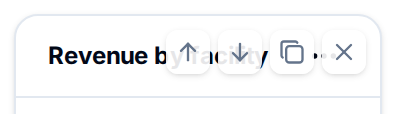
The arrows move it up or down one place, the copy icon adds a duplicate titled with "copy" at the end, and the cross removes it. Select a widget anywhere else to set it up in the right panel.
Filters
Dashboards you build here have no filter or time controls. Those come with dashboards installed from a template or pack (see Starter packs and templates), and stay when you edit them.
If someone else saves the same draft while you are editing, Vantage says "This dashboard was changed elsewhere. Reload it and try again." Reload loads their version; Overwrite keeps yours.
Next
- Publish to share the draft
- Exports to take a chart out as CSV, Excel or PNG
- Metric models to rename or add the measures you chart