Manage dashboards
How do I rename, duplicate, archive and delete dashboards?
Elly's Depot sales dashboard is the one her managers open every morning. She wants a copy to try a new layout on without touching it, and to clear out drafts nobody uses any more.
Dashboards are managed from the project's list. You need the editor or admin role in the project; viewers see the list without the ⋯ menu. A dashboard stays in the project it was made in: Vantage has no way to move one to another project.
Open the dashboard menu
- Open Projects and select the project.
- On the dashboard's row, open the ⋯ menu.
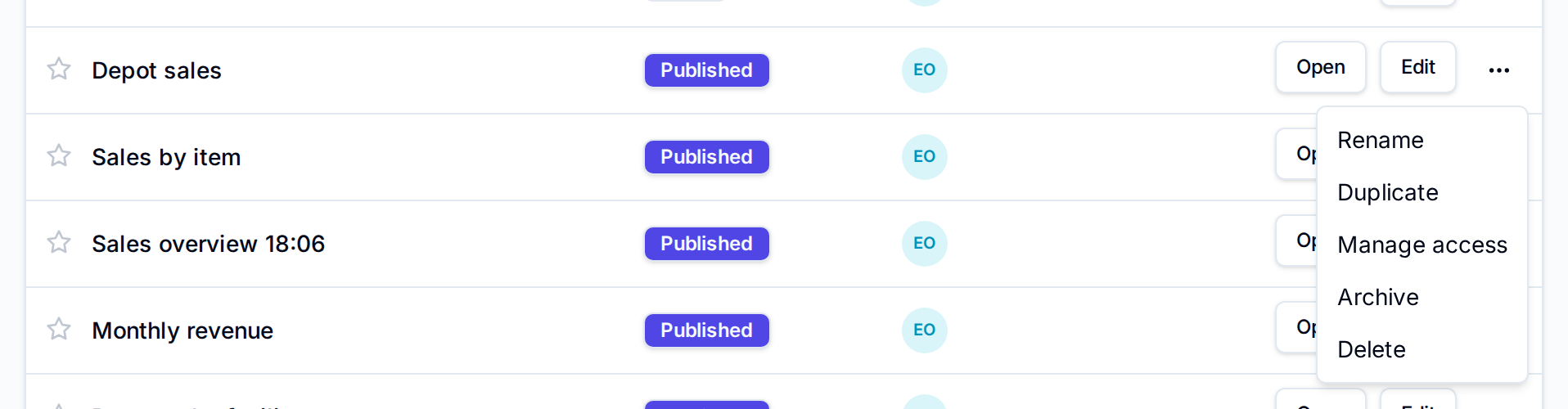
| Item | What it does |
|---|---|
| Rename | Change the name in Rename dashboard and select Save |
| Duplicate | Add a copy named with "(copy)" at the end |
| Manage access | Share a published dashboard with someone outside the project (Dashboard access) |
| Archive / Restore | Hide the dashboard, or bring an archived one back |
| Delete | Remove it for good |
Duplicate
Select Duplicate. The copy, here Depot sales (copy), appears in the list as a Draft, made from the original's draft. It has not been published, so nobody but editors sees it until you publish it, and people the original was shared with through Manage access are not added to it. Select Edit on its row to change it.
Archive
Select Archive to take a dashboard out of the way without losing it. It disappears from Projects and Dashboards for everyone, and a scheduled publish on it is cancelled.
To see archived dashboards, turn on Show archived above the list. They show greyed out; open the ⋯ menu and select Restore to bring one back. A restored dashboard needs a new schedule if it had one (see Publish).

Delete
- Open the ⋯ menu and select Delete.
- Type the dashboard's name exactly to confirm, then select Delete permanently.
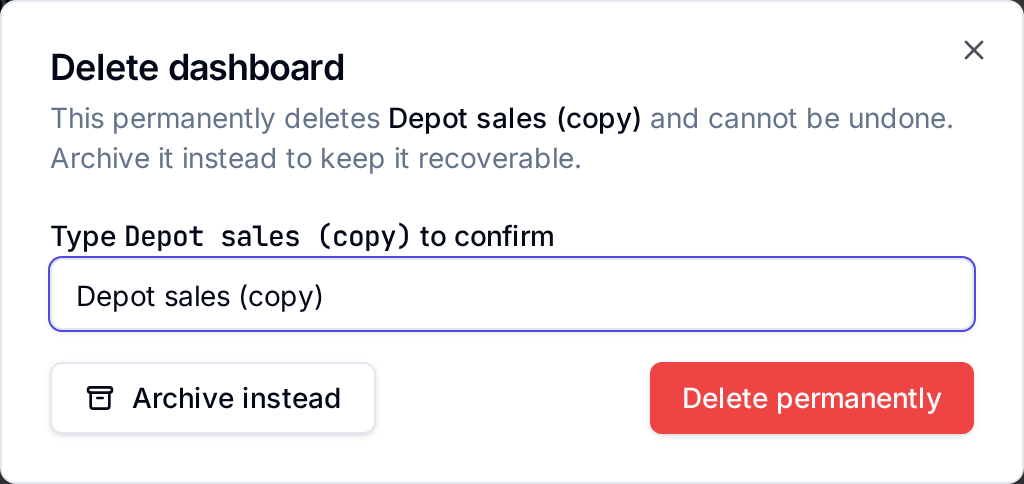
Deleting cannot be undone. Archive instead archives the dashboard rather than deleting it.
Star the ones you use
Select the star at the start of a row to keep a dashboard at the top of Dashboards, where Favorites only shows just the starred ones. Stars are your own; anyone who can see a dashboard can star it.
Next
- Build a draft to change the copy
- Publish to put the new version live
- Dashboard access to share one dashboard