Upload a file
How do I upload CSV or Parquet, and what are the limits?
Elly's depot staff count the shelves every Monday and send her the counts as a spreadsheet. She wants them in Vantage next to the sales, so she saves the sheet as CSV and uploads it.
You need the editor or admin role in the project the file is for. A source shared with every project needs a workspace owner or admin.
Create the source
A file is uploaded into a source. Create the source once, then upload into it as often as you like.
- Open Data and select Add source.
- Keep File upload selected.
- Enter a Name, here Stock counts, and choose the Project. Leave Shared (tenant-wide) to make the data available to every project.
- Select Create source.
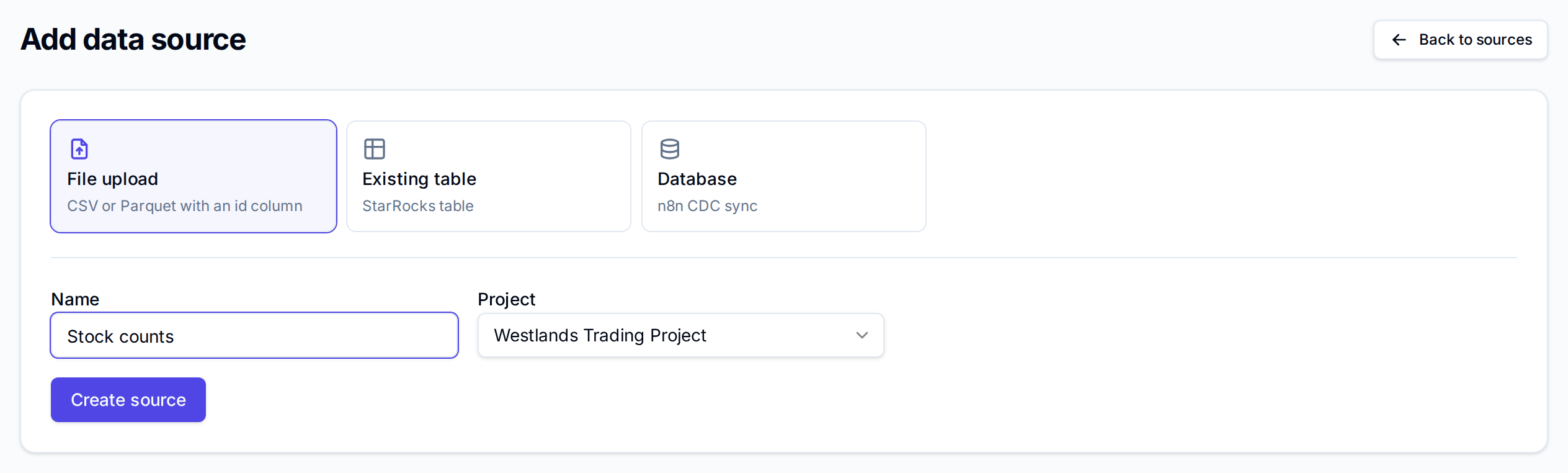
On the Trial and Starter plans a workspace can have 3 data sources, on Growth 10, and on Business as many as you need.
Check the file
| Rule | If it is broken |
|---|---|
A .csv or .parquet file, up to 512 MB | Only .csv or .parquet files are accepted |
An id column that identifies each row | File is missing the required "id" column |
| Column names of letters, digits and underscores, not starting with a digit | Invalid column name |
No columns named tenant_id, _ingested_at or _source_id | File must not contain reserved columns |
Vantage reads the column types from the file. In a CSV, whole numbers become integers, other
numbers become decimals, and everything else is text. A column whose name ends in _date, _at,
_ts or _time is read as a date, so name the date column that way if you want to chart over
time.
Upload
In the source's row, select Upload and choose the file. Vantage checks and loads it, which can take a few minutes for a large file.
If the file breaks a rule, the load stops and the row's Status turns to error. The message saying which rule is not shown in the app, and the row only changes once you reload the page; check the file against the table above and upload it again.

When the load succeeds, the row turns to ready. Expand it with the arrow to see the table the file was loaded into, here raw_stock_counts, with its rows and columns.

Select Metrics to name and format the measures Vantage built for the table (see Metric models), or Transform to build a cleaned-up dataset from it (see Modeled datasets).
Upload again
To bring in next week's counts, upload the new file into the same source. A row whose id is
already there is replaced, a new id is added, and rows missing from the new file stay as they
were. New columns are added. A column cannot change type: a column loaded as numbers refuses a
file where it holds text. For a clean start, create a new source.
Uploads also count towards the rows your plan stores: 1M on the trial, 5M on Starter, 50M on Growth and 250M on Business. A workspace at its limit cannot load more until it moves up a plan.
Next
- Datasets and refresh for what was created and when it updates
- Connect a source to sync a database instead of uploading files
- Metric models to define the measures charts use