Starter packs and templates
How do I install a pack or a template?
Elly would rather start from dashboards someone has already designed than build every chart herself. Before pointing a template at her own data, she tries the Retail one on its sample data to see what she would get.
Packs and templates live in Catalog. You see Catalog if you are a workspace owner or admin, or an editor or admin of the current project. A pack installs into the current project, so pick the project in the project switcher first.
What is in Catalog
| Section | What it holds | Who can install |
|---|---|---|
| Your packs | Packs made in this workspace: starter packs drafted by AI and templates mapped onto your data | Editors and admins of the project, workspace owners and admins |
| Templates | Ready-made designs for wholesale, retail, CRM, field service, internet providers and health and safety, each with synthetic sample data | Anyone who sees Catalog |
| Base packs | Packs over the Norims data feed, in Norims Vantage only | Admins of the project, workspace owners and admins |
A section with nothing in it is not shown. Each card shows the version available and the version installed.
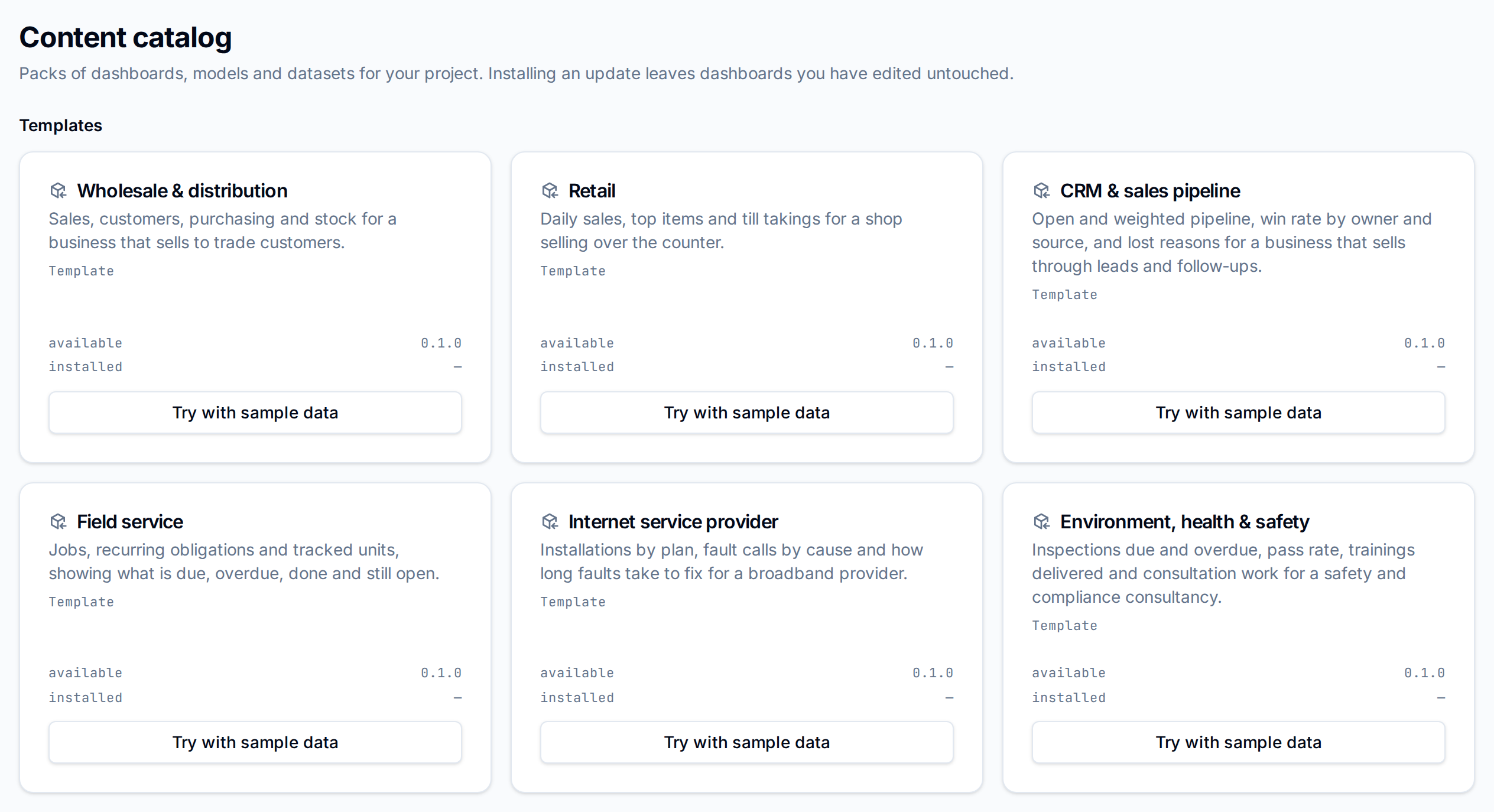
Try a template on sample data
- Open Catalog.
- On the template, here Retail, select Try with sample data.
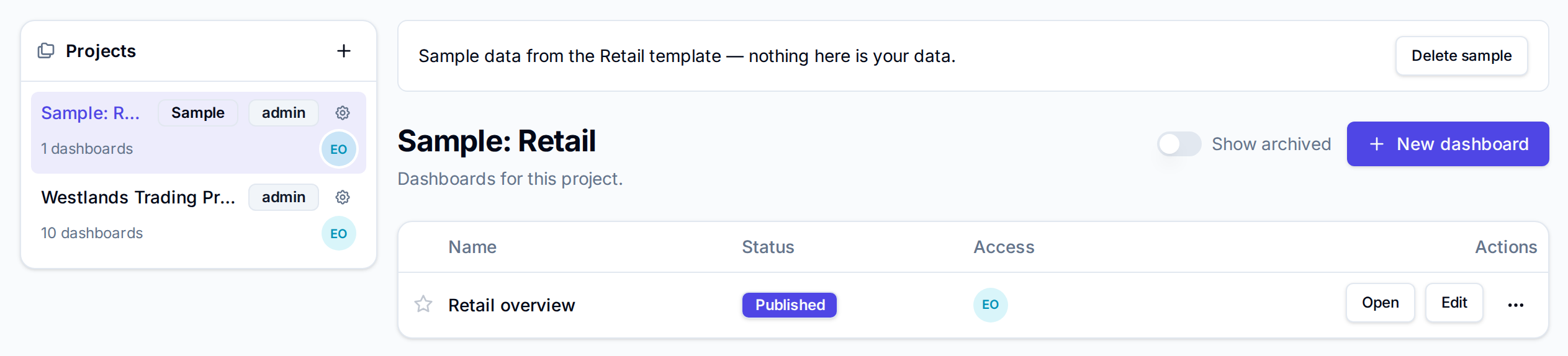
Vantage loads the sample data into a new project, here Sample: Retail, installs the template's dashboards, and switches to it. A banner says "Sample data from the Retail template — nothing here is your data."
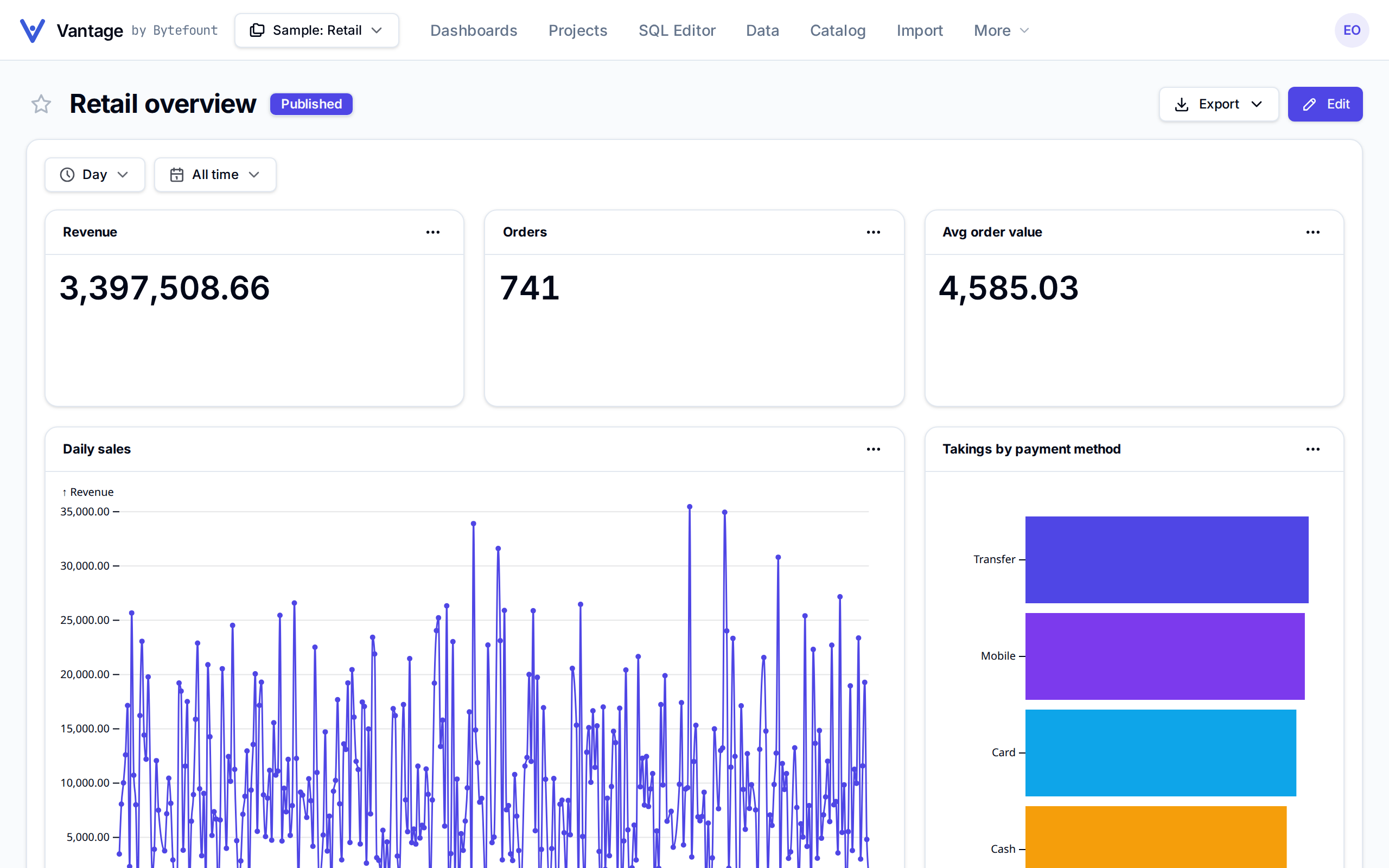
Open the dashboard to explore it. Template dashboards come with time controls (and some with filters) at the top, which dashboards you build yourself do not have: here Day sets the time grain and All time the period.
The sample counts towards your plan's rows like any other data. When you are done, select Delete sample on the project's dashboards and confirm with Delete; Vantage removes the project, its data and its dashboards, and switches to another project.
Use a template with your own data
With AI on for the workspace, templates also offer Use with my data. AI maps the template's columns onto your datasets and opens Your starter pack: untick anything you do not want, then select Import. The pack lands under Your packs and its dashboards in the current project. Draft a starter pack from your data, at the top of Catalog, does the same without a template. Both cost 3 AI actions; see What the AI can see.
Install or update a pack
On a pack in Your packs or Base packs, select Install. The button reads Update when a newer version is available and Reinstall when you have the latest. When it finishes, Vantage lists what it did, line by line: sources created, views materialized, models upserted, dashboards created or updated.
An update leaves alone any dashboard you have edited since it was installed, and asks Overwrite edited dashboards?: Keep my versions keeps your changes, Overwrite (followed by the number of dashboards) replaces them with the pack's. A pack whose data has not arrived yet says "Waiting on" the missing datasets, and its views and models apply once that data lands.
Next
- Build a draft to change an installed dashboard
- Draft a dashboard with AI for a single dashboard instead of a pack
- Import a pack to bring in a pack made elsewhere