Your first dashboard
How do I go from a CSV to a published dashboard?
Elly owns the Westlands Trading workspace. She has a year of sales exported from the till system as a CSV file (one row per order line, with the date, facility, item, revenue and quantity) and wants a dashboard her team can open to see revenue by facility.
This page takes you from that file to a published dashboard. You need the admin or editor role in the project.
Upload the file
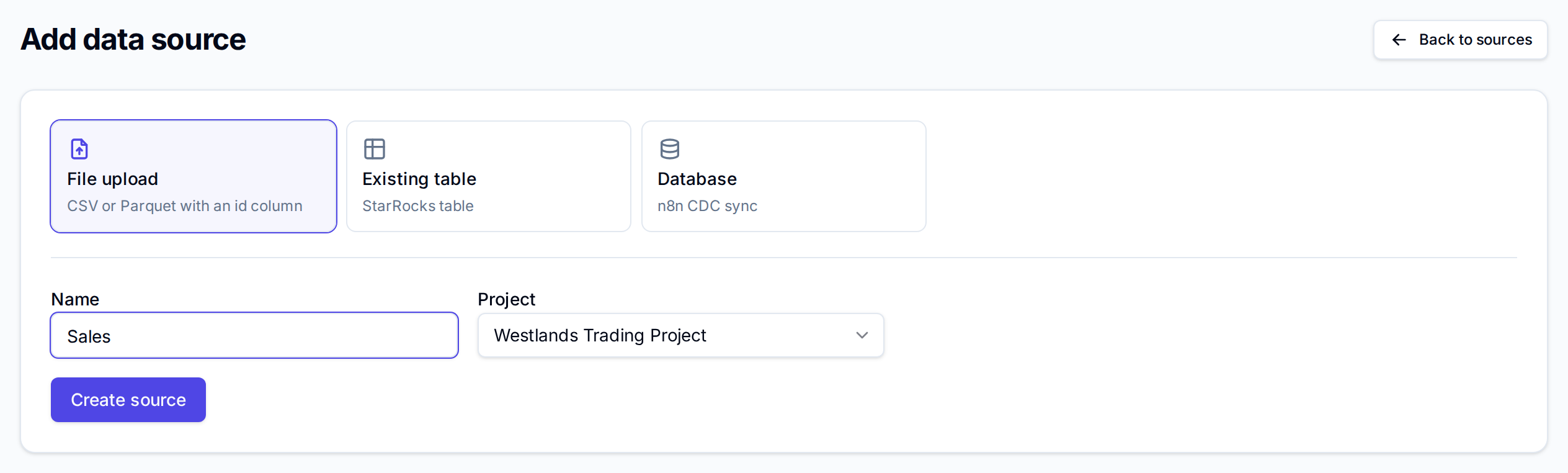
- Open Data and select Add source.
- Choose File upload.
- Enter a Name, here Sales, and choose the Project the data belongs to. Leave Shared (tenant-wide) to make it available to every project.
- Select Create source.
- In the new source's row, select Upload and choose the file.
The file must be CSV or Parquet, up to 512 MB, with an id column that identifies each row.
It must not contain columns named tenant_id, _ingested_at or _source_id.
Vantage checks and loads the file, which can take a few minutes. The row's Status changes to ready when the data can be charted. If it changes to error, check the file against the rules above and upload it again.

As soon as the source is ready, Vantage builds a metric model for it: a Count of rows and a measure for each numeric column, such as Revenue and Quantity Sold. You can chart them straight away. To rename or hide measures, expand the row and select Metrics; see Metric models.
Create the dashboard
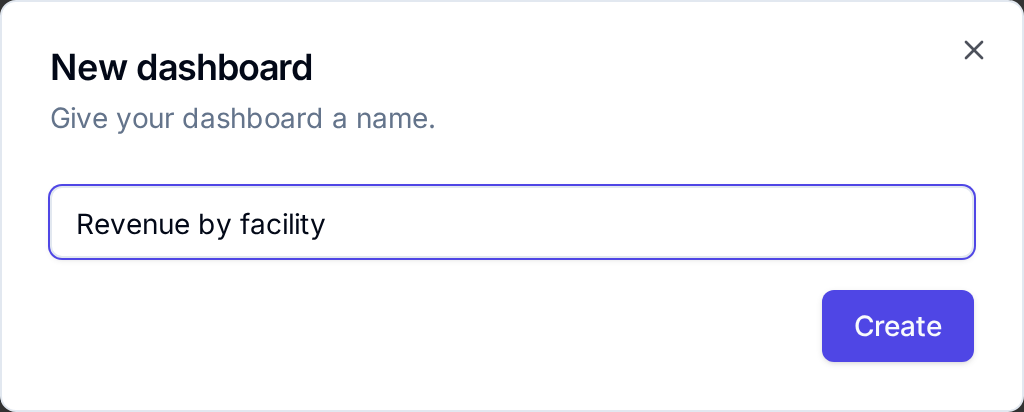
- Open Projects, select the project, and select New dashboard.
- Enter a name, here Revenue by facility, and select Create.
The dashboard opens as a Draft. Changes to a draft save automatically, and viewers see nothing until you publish.
Add charts
Each chart on a dashboard is a widget. Add one, then set it up in the panel on the right.
- Under Add widget, select From metric.
- In the right panel, enter a Title, here Total revenue.
- Under Data source, keep Metric, choose the dataset Sales, and tick the measure Revenue.
- Set Visualization to number.
For the revenue by facility chart:
- Select From metric again and enter the title Revenue by facility.
- Choose Sales, tick Revenue, and choose Facility as the group-by dimension.
- Keep Visualization as bar, set X axis to Facility, and tick Revenue under Y values.
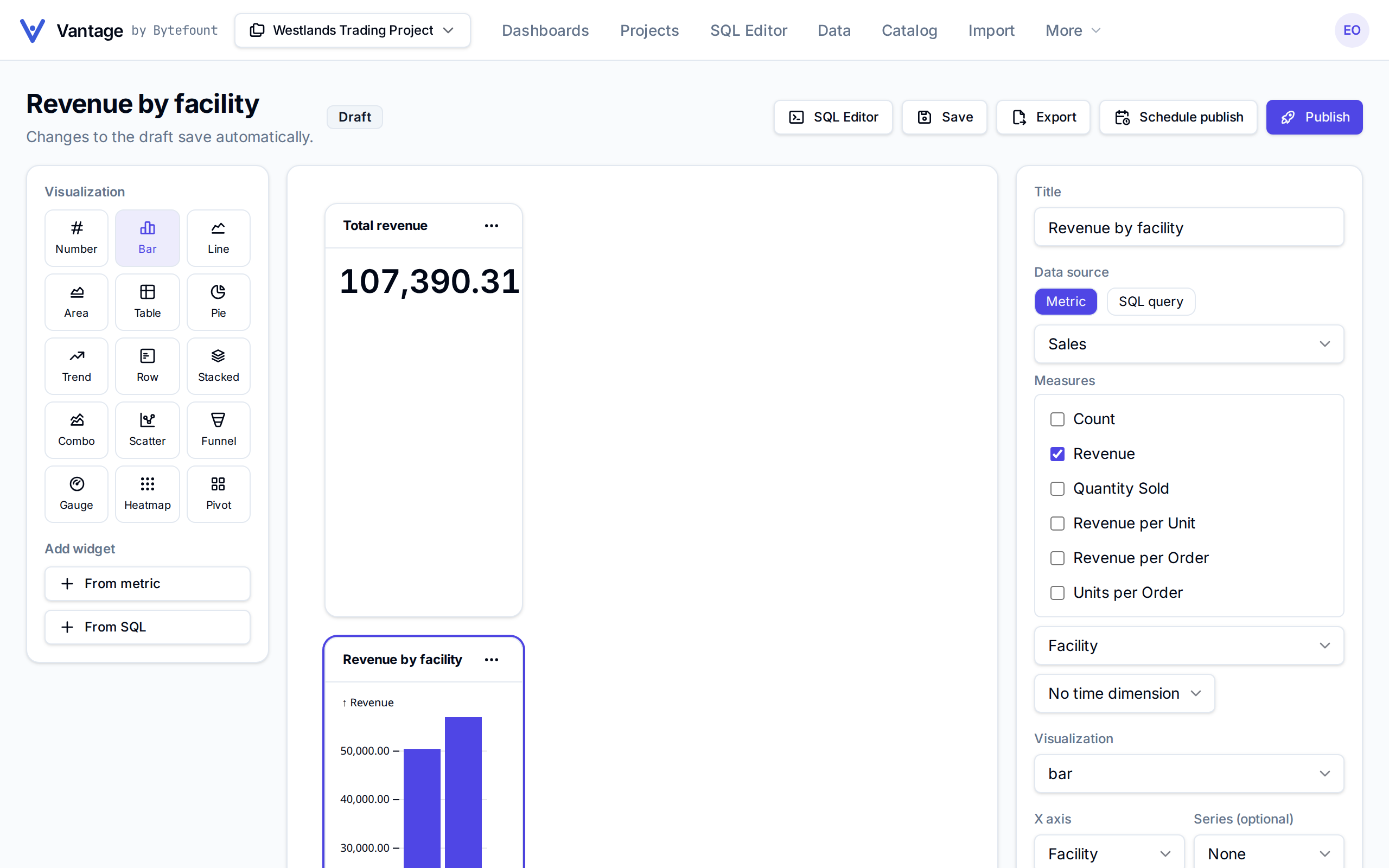
To chart a time series instead, choose Order Date as the time dimension and a granularity from day to year. To chart the result of a saved SQL query, select From SQL instead of From metric.
Dashboards you build here have no filter controls. Filters and time controls come with dashboards installed from a starter pack.
Publish
Select Publish. Vantage confirms with Dashboard published and opens the published dashboard.
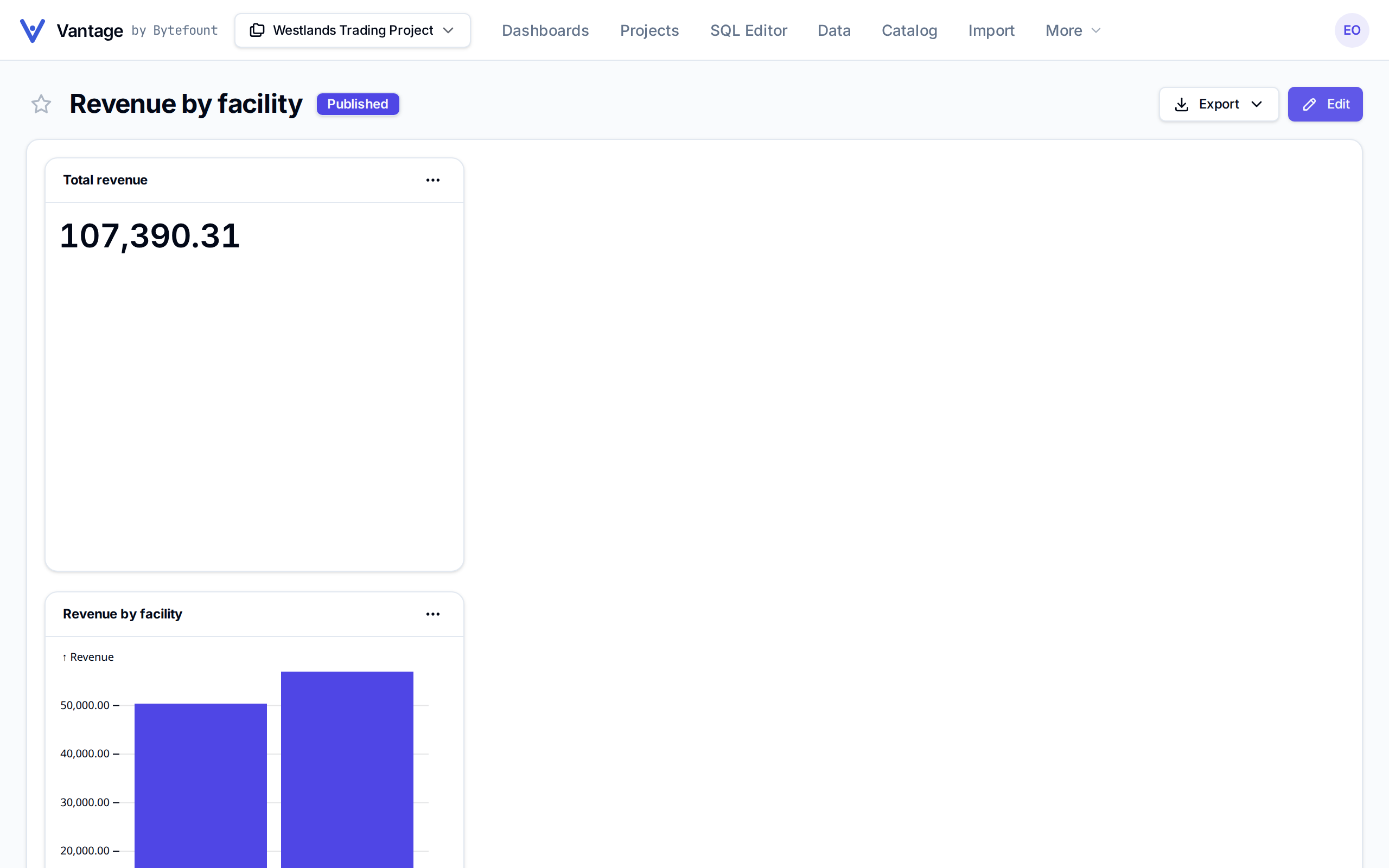
Everyone in the project can now open it from Dashboards, and an admin can give people outside the project access too (see Dashboard access). Viewers can star it and Export it as PNG or PDF. Editors also see Edit, which opens the draft again; viewers keep seeing the published version until you publish again.
If someone else changed the dashboard while you were editing, Vantage says "This dashboard was changed elsewhere. Reload it and try again." Select Reload to start from their version or Overwrite to keep yours.
Next
- Build a draft for every chart type and layout
- Publish to schedule a publish or control who sees a dashboard
- Ask a question to get an answer from the same data in plain words